
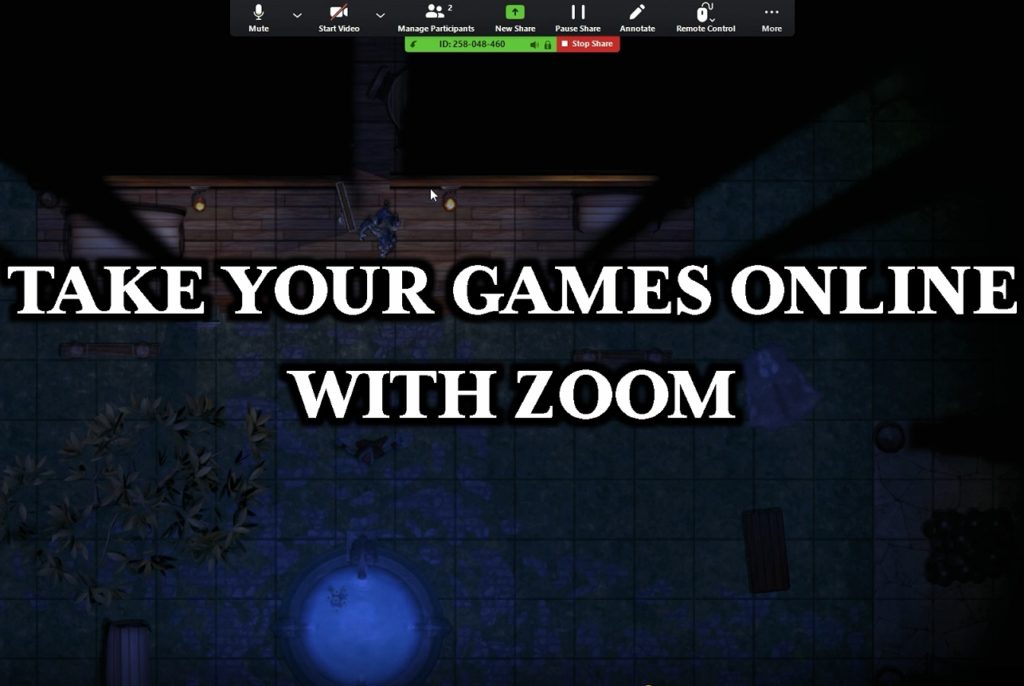
How to use Arkenforge online with Zoom
This is our third guide to bring your Toolkit online using a powerful online meeting program, Zoom.
Requirements:
- Have a secondary physical monitor/TV/projector or any kind of display device connected to your system you can use as the player’s view.
- Have Zoom installed ( https://zoom.us/ )
Zoom is a free application to use for this, but there is a catch, it disconnects a session after 40 minutes. Using the link to the meeting you can quickly come back to your game though, and while it’s a minor inconvenience, it still works very well being free. Having the paid version of Zoom eliminates this issue, but since we are no fans of subscription services – we recommend using it just free with reconnecting every 40 minutes. Using Discord for voice, you can use Zoom only for maps and Soundscapes so the voice chat will not be interrupted, plus you can take advantage of the rolling bots. We are releasing a timer plugin to know exactly when it cuts out.
https://youtu.be/FByB0g5pV4A
Step 1 – Click on Settings in the main menu
Step 2 – Activate player screen to your secondary monitor
Step 3 – Start a zoom meeting
Step 4 – Share the Application (Unity 2nd screen – Master’s Tookit) not the screen! Refer to the video.
Step 5 – Give control to the player who has their turn, or enable automatic control, and delegate your players.
Step 6 – When the session cuts out, use the original link to get back in session.
Done!
Cheers,
The Arkenforge Team

Comments are closed.