
A New Public Release
After over 2 years of solid development, the day is finally here. We are releasing the Arkenforge Toolkit v0.5.0.0 into the Public stream!
It’s been coming for a long time – 30 months, to be exact.
We’re incredibly proud of this release. We’ve poured so much into the Toolkit, and the end result is something that feels better to use than ever, has a huge range of new features, and has never run smoother.
We want to hear your feedback on this update, so please jump into our Discord and let us know what you think! You can find it at https://discord.gg/Arkenforge
What does this mean?
Well, it means that all Arkenforge users are about to have access to over two years of new features, bug fixes and optimisations. And most importantly – the update is free for everyone.
As with all of our previous major public updates, all trials have been reset. This gives everyone another 30 days to check out the new Toolkit.
Now, let’s take a look at just a few of the exciting new features you’ll have access to.
If you’d like to check out the full patch notes – we’ve included them at the end of this article.
New Features
Text Placement
One of our most requested features over the years, and something we’re very happy to finally have in the Toolkit. You can now place text directly on the map.
As a bonus – text is treated the same as any other map object, meaning you can add Effects to it!
Dice Rolling
The Toolkit now features the d20 dice system! The 3D dice can be rolled openly or secretly, and you can roll without the 3D effect to instantly generate your dice results.
We aim to include more dice systems in future updates, as well as important features such as exploding dice. For now though, enjoy your rolling!
New Stat Blocks
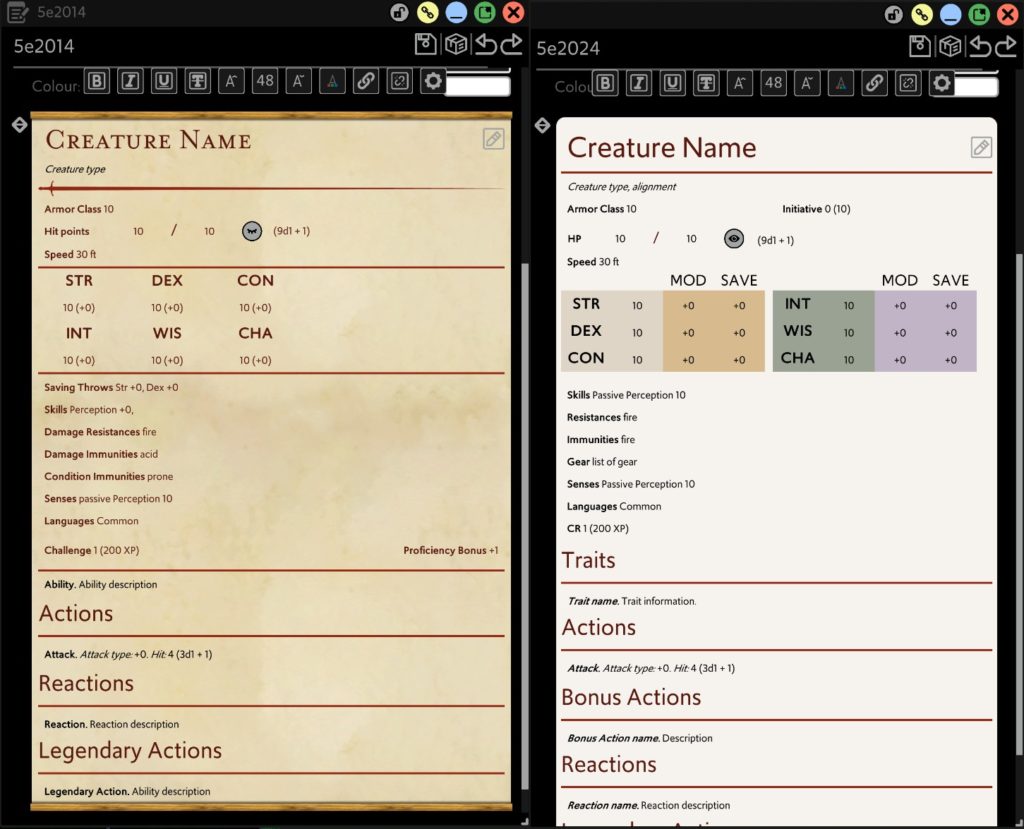
You can now add 5e 2014 and 5e 2024 stat blocks to your notes. This should make it much easier to view the information of your monsters and NPCs at a glance.
Rollable Tables
Determining the outcome of your party’s actions has never been easier! Rollable tables are now a part of the Arkenforge Toolkit.
These tables also allow for weighting by letting you set a range of rolls for each outcome.
Token Touch Control
Previously, touch control would only reveal fog where the touch occurred. This meant that every touch point would reveal the same vision radius, and other effects could not be added.
Now that you can directly move tokens with touch, each touch point can have completely different vision values.
Ambience Listeners
In previous Arkenforge Toolkit versions, proximity-based ambience would trigger based on the position of the player screen. With this new update, all tokens can have Listeners attached!
Listeners will allow tokens to hear ambience as they approach it, increasing the immersion of your games.
Toolkit Colouring
Accessibility and personalisation are important cornerstones of Arkenforge’s design philosophy. In line with these principles, we’ve added several new UI elements to the ‘can be recoloured’ pile.
We always enjoy seeing screenshots with different UI colouring. Don’t hesitate to show off yours!
New map export options
Many of our users enjoy building maps in the Toolkit for use online. For that reason, we’ve built on our existing map export functionality so that you can match what you get in the Toolkit with your target VTT as closely as possible.
Video export is now significantly improved, allowing for custom sizing and DPI. We’ve added WebM and WebP as export options, alongside an updated FoundryVTT Module exporter.
UI Improvements
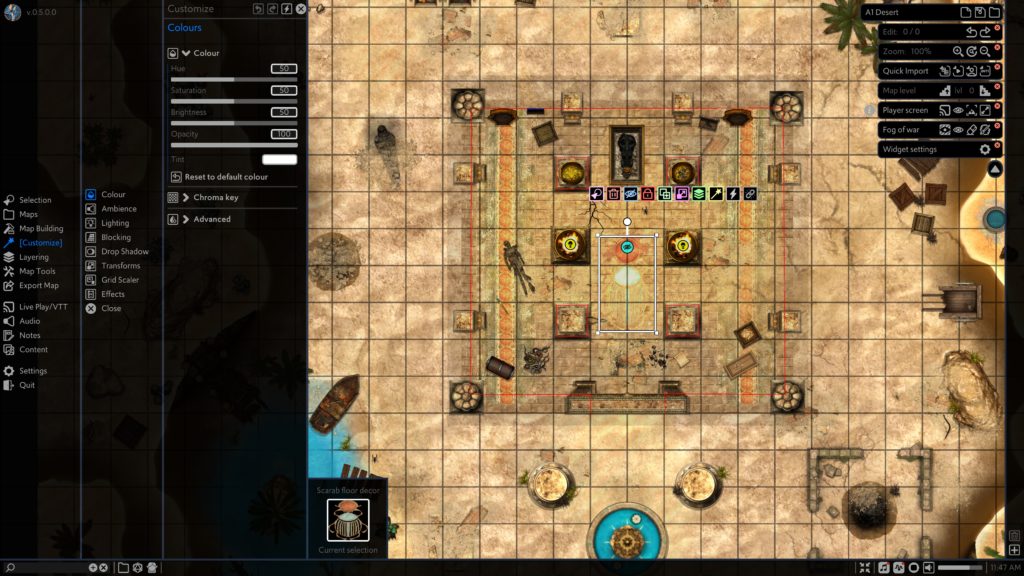
We’ve reworked every panel and window in the Toolkit to make it much clearer and simpler. Controls are now organised into toggleable sub-headings, so you won’t feel as overwhelmed by the number of options available. Widgets have been moved to the right-hand side, and the number and visibility of them can be fully customised. We’ve also moved the important features down to the taskbar, meaning you’ll spend less time in menus.
Optimisation
We’ve worked hard to get the Toolkit running as smooth as possible. It can now handle even larger maps, even more animations, and even more effects, all while maintaining a minimum of 60FPS.
Even the UI feels snappier to use :)
What’s next?
The v0.5.x update series has one central focus – Players. The finer points of what that means is something we’ll announce in the future, but we can guarantee the end goal of the v0.5 update series – a free player app that will connect to the Toolkit.
That’s not to say there won’t be other things in there as well. We have a whole heap of other features and improvements that we’ll be bringing out as we roll out these updates. We’re incredibly excited for what we’ve got coming next, and we can’t wait to show off some amazing new features!
We’ll also be releasing a bunch of content that we’ve got in the wings that required this update before release. Look out for some exciting content releases throughout the year! In the meantime, please enjoy the new public release.
Thank you for sticking with us on this journey.
– The Arkenforge Team
v0.5.0.0 Patch Notes
NEW FEATURES
General
- Added WebP support
- Added a search bar to the taskbar. This mimics the content of the Content Library search, without the suggested search filters
- Added notification section above the Currently Selected panel
- Added right click options to map objects:
- Select all of this object
- Added Drag + Drop UI element. This will highlight when content can be dropped somewhere
New Panels
- Maps
- Import map
- Map Builder
- Blur
- Shadow
- Text
- Customise
- Ambience
- Blur
- Text
- Drop shadow
- Live Play/VTT
- Dice
- Tokens
- Touch
- Export
- VTT
- Image
- Video
- UVTT
- Content
- Index
- Pack Export
Accessibility
- Can now change colour of T1 Menu Background
- Can now change colour of T2 Menu Background
- Can now change colour of T3 Menu Background
- Can now change colour of Selection Box Background
- Can now change colour of Arkenbar Background
- Can now change colour of Taskbar Background
- Can now change colour of Asset Selection Background Colour option.
- Added ‘Spacialize UI Audio’ option to Accessibility panel. This is enabled by default
Ambience
- Can now link proximity-based audio to all map content. All existing proximity-based audio has been upgraded to the new system
- Added ‘add to map’ option when selecting an ambience preset in the Ambience Presets panel
- Added icon on taskbar to show if ambience is currently playing
- Ambience Presets now have meta files
Animation
- Added ‘Destroy After Playing’ option to Animation Customisation panel
Arkenbar
- Added ‘Heading’ option to ‘Add to Arkenbar’ button. Headings will give a hoverable icon that custom text can be added to
- Added ‘Divider’ option to ‘Add to Arkenbar’ button. Dividers will add a divider icon to the Arkenbar
Audio
- Added ‘Dice Volume’ slider
Blocking
- Removed ‘alpha friendly collider’ option
- Added ‘Collider Mode’ option. The following collider modes have been added
- Standard. The regular collider that most assets use.
- Alpha-friendly. A more complex collider. More intensive, but may provide better results when dealing with low-transparency assets.
- Simple box. Just puts a box collider around the asset. Assets with this collider type will not block light/fog/etc.
- Added ‘Movement’ blocking type. This will stop content from moving through this object if it has ‘affected by movement blocking’ enabled
Bulk importer
- Used to import large numbers of files efficiently
- Selecting content for import will put importer into ‘staging mode’, allowing you to select how your content will import
- Audio can be imported as Songs or SFX
- Visual media can be imported as Map Asset, Map, or Token
- Files with underscores can be treated as standalone files, or as sub-tracks/animation frames
Customise – Colour
- Chroma Key can now be set to change colour, rather than only erasing colour
Customise – Content Link
- Added ‘Use default tint’ in the Customise -> Content Link panel
- Added ‘Visible on lower levels’ option in Customise -> Content Links panel. This will be set to ‘enabled’ for existing maps
Customise – Drop Shadow
- Can be used to set per-object drop shadow settings
- Values can be set to map default, or overridden
Content Library
- Updated Content Library UI
- Deleted files are now moved to the Deleted Content folder, rather than being instantly removed. The Deleted Content folder will be cleared when the Toolkit is exited. Right clicking on files in the Deleted Content folder will give the option to restore content
- Added Shortcuts section to Content Library window. Folders can be dragged into shortcuts section for quick access. Right clicking a shortcut will give the option to remove it from the shortcuts section
- Folders can be dragged onto the Arkenbar for quick access. Selecting them will open the Content Library to the specified folder
- Added search filter list. Existing search filters can be removed by pressing the X button on them
- Added suggested search terms. Clicking these will add the given search filter to the stack
- Added option: Sizing -> Horizontal Squares. This will set the horizontal size of the selected content to a set number of squares
Dice
- Can roll multiples of each dice type with modifier
- Can roll with or without 3D dice
- Dice history is shown in Dice panel
- Can change colours of individual dice
- Can change colours of individual elements of individual dice
Effects
- Added new effect: Double Click
- This effect will allow a content link to be set on an object. Double clicking on the object will activate the content link
- If an object has multiple links set, they will trigger in the order the effects were added
- Line Scroll can now be reversed
- The following effects are now available for Line placement types
- Float
- Shake
- Rotate
- Rotate Pivot
- Added ‘Plays while hidden’ option to Sound Trigger effect
- Added ‘Vary sound properties’ toggle to Sound Effects trigger. This will vary the pitch and volume of the triggered sound effect
Fog of War
- Added ‘fog of war brush colour’ option in Fog of War panel
- Added text to player screen alerting that fog of war is enabled. This can be turned off in the Fog of War panel
- The Fog of War brush now respects walls and barriers. This will stop rooms from accidentally being revealed while brushing
Grid Scaler
- Updated Grid Scaler functionality. Can now use an infinite number of points to scale grid (minimum 2)
Hotkeys
- Added a search bar to the Hotkey panel
- Can now drag hotkeys to Arkenbar
- Can now drag hotkeys to map
- Can now export all hotkeys from a given hotkey profile as a text document
- Added ‘Overwrite’ option to Hotkey prompt. This will remove all existing hotkeys that use the selected key combination
Importing
- Can now import WebP files
- Can now import Dungeondraft Asset Packs when importing Mapping Assets. Only packs with the ‘allow_3rd_party_mapping_software_to_read’ can be imported
Indexing
- All Toolkit content is now Indexed. An index file will be generated when the Toolkit starts if one is not already present
- Index is used for content searching and finding missing content
Indicators
- Added second colour option for toggleable blocking. This will allow users to change the colour of barrier indicators that are toggled on and off
Layer Stack
- Added ‘Delete this content’ button to layer stack
Lighting
- Added Light Direction slider to light settings panel. This will rotate lights with a reduced FOV without needing to rotate the asset itself
Lines
- Added Line Scroll option. This will allow you to scroll the line texture manually
- Added Line Fade option. This will cause a line to fade out. Settings are provided for where along the line the fade starts
Live Play – Tokens
- This new panel provides a list of all tokens in the Toolkit
- Clicking + Dragging a token onto the map will populate it automatically as a note with an icon and size field
- Token panel has a search bar to quickly find tokens
- Can place Tokens as PC or NPC. This will change the default fields on the token
Map Background Textures
- Added Map Background Texture option in Grid Settings and New Map panels
- The following textures are included as options:
- None
- Dirt
- Grass1
- Grass2
- Grass3
- Stone
- Water1
- Water2
- Desert
- Dungeon1
- Dungeon2
- Lava
- Sand
- Sky
- Snow
- Maps will use Grass1 texture as default
Map Builder – Blur
- Blurs content underneath the placed area
- Blur can be placed as a tiled tile or a polygon tile
Map Builder – Shadows
- Can now place shadows directly as a line or tile brush
- Added Shadow Strength option
- Added Shadow Width option
- Added One Sided option when using Line shadows
Map Builder – Text
- Can now place text on the map
- Can change text colour, formatting, size, outline, and outline colour
Map Content
- Added right click option: Hotkey all selected content. This will allow multiple objects to be assigned to the same hotkey.
- Added ‘Build with this asset’ to right click menu of placed map assets
- Added ‘Content Link’ as a default placement option
Map Export
- Added WebP export for Image export type
- Added WebP export for FoundryVTT export type
- Added WebP export for Fantasy Grounds Unity export type
- Added WEBM option for video exports
- Added WEBM export option to Foundry VTT export
- Added Foundry v11+ Module export (Windows only).
- Added WEBM export option to Fantasy Grounds Unity export.
- This will generate the XML file as well, allowing you to import WEBM files with line of sight and lighting
- Added D&D Beyond export.
- Added Owlbear Rodeo export option
- Added the following toggles to map exports. These will affect what is visible in the final export
- Grid
- Lights
- Hidden objects
- Tokens
- Only export this level
- Upper level shadows
- Added ‘show file after export’ checkbox. This will open the folder containing the exported file
Map Info
- Added ‘Generate asset list’ button. This will export a list of all assets in your map as a CSV file
- Added ‘Open map file in browser’ button
Measurement
- Can now move persistent measurements using the UI handle.
Missing Assets
- Added ‘Clear all missing assets’ button
New Map
- New Map is now a T3 panel, rather than a standalone window
- Added new pre-defined map sizes
- Pre-defined map sizes now appear as a right click-style menu for easy navigation
- Added ‘enable drop shadows’ option
- Added ‘Background texture’ option
Notes
- Added new note fields:
- 5e 2014 Stat Block
- 5e 2014 Item Block
- 5e 2014 Spell Block
- 5e 2024 Stat Block
- 5e 2024 Item Block
- 5e 2024 Spell Block
- Controllable. Notes with this field can be controlled by touch
- Listener. Notes with this field will be able to hear positional audio
- Rollable table
- Added ‘Direction’ slider to Vision field. This will change the direction of vision for vision FoV lower than 360
- Added ‘Show Token identifier’ checkbox to Note Icon field
- Added ‘Token Identifier’ input field to Note Icon Field
- Added options
- Set Background -> Colour
- Set Background -> Static Image
- Set Background -> Scrollable Texture
- Added Caret Width option in Settings -> Notes -> Text
- Typing @ will now pop up a global search window that will populate with content as you type
- Selecting a content link that pops up in this manner will link it in the note at the location of the @ symbol
- Note: Only indexed content will appear
- Added Show Border option to Text field
- Added Show Border option to Media field
- Added ‘Vision works while hidden’ checkbox to Vision field
- Added ‘Generate content links’ button in right click menu for all text boxes. This covers Text fields, Rollable Table fields, and System-specific stat blocks
- Users can set what types of content are found in the Note Settings panel
- Users can set the minimum name length of found content in the Note Settings panel
- Only indexed content can be found
- Added ‘Remove content link from selected’ button to Note Formatting bar. This will remove any content links from the selected text
- Added ‘Auto-Link Settings’ to Note Settings dropdown
- Added button next to Media fields to view content in window
- Added a Resize handle on Media fields. This can be click + dragged to resize media in the note
- Can now set font in text fields. Available fonts
- Toolkit default
- Toolkit dyslexic
- 5e Heading
- Added new default note templates
- Adventure note
- 5e Character
- 5e Item
- 5e Spell
Pack Export
- This panel allows you to export selected assets into a MyAssets-style folder
- Linked content in the selected assets will automatically be added to the export
- The contents of this exported folder can be copied into the MyAssets folder of a different device
Player Screen
- Added ‘Local Streaming’ option to Add Extended Screen panel
- Only Player Screen can be set to stream. Extended GM Screen panel can not be streamed
- A second screen is not required for local streaming
- Navigate to your computer’s local IP address in any browser on your local network to see the Player Screen
- Streaming resolution and framerate can be adjusted in the Settings -> Display panel when streaming is active
- Streaming can be deactivated in the Settings -> Display panel
- Player screen streaming will launch a local webserver application in the background. This will be closed when the Toolkit closes
- If you accidentally turn this webserver off, disabling and re-enabling the player screen for local streaming will restart it
- Right clicking on any map content and selecting ‘Link player screen to this’ will cause the player screen to follow that object
- Added ‘Square width’ option to Add New Screen -> Player Screen panel. This will set the width of your squares to the desired physical size
- Renamed Player Splash Screen to Player Screen Overlay
- Player Screen Overlay can now be set on a per-map basis, as well as a global splash
- ‘Set start point’ button on Player View Box will now provide the following options:
- Set start point
- Add bookmark here
Playlists
- Added ‘Start playlist on shuffle’ button
- Added icon on taskbar to show if music is currently playing
- Playlists now have meta files
Quick Access Menu
- Added ‘Link content’ button. This button will appear when a single item is selected. Dragging it will provide a content link to the object.
- Created link references the default placement settings of the given asset
Settings – Audio
- Added ‘Default ambience volume’ slider
- Added ‘Spacialize UI Audio’ option
Settings – Grid
- Added ‘Default BG Colour’ option to Map Background settings
- Added Background Textures options
Settings – Map
- Added ‘Fade in on unhide’ option
Settings – Performance
- Added ‘Thumbnail Placement Threshold’ value. Images with a pixel size below the selected value will use the full image for placement, not a thumbnail
- Added Framerate viewer
- Added ‘clear undo/redo queue’ button
SFX Palettes
- Can now randomise audio properties when playing sound effects from an SFX Palette
- SFX Palettes now have meta files
Shown Content
- Can now increase size of shown content by up to 3x
- Added ‘Clear content when panel closed’ toggle. This will remove shown content when the ‘Shown Content’ panel is closed
Time of Day
- Can now enable/disable drop shadows globally
- Added ‘northern hemisphere’ checkbox for ‘Shadows follow sun’ option
- Added option ‘Time only moves forward’. This is enabled by default
- Added ability to time cycle. This will cause time to move forward at the current ‘Speed of time change’ rate. This can only be triggered by hotkey. Any manual changes to the time of day will stop time cycling
Tokens
- Can now place tokens with video icons on the map
- Can convert video placed assets to tokens via right click menu
Touch
- Touch now only works with the v3 Touch Client
- Toolkit no longer broadcasts over the network. Broadcasts now come from the Touch Client
- Users now select which Touch Client to connect to from all available on the network. This allows multiple Toolkits and Touch Clients to operate on the same network without issue.
- Touch client connection process is now more robust
- Can now rename the currently connected touch client
- Can now disconnect from the currently connected touch client
- Added ‘touch points visible’ option. Disabling this will hide touch points.
- Added ‘Rotate input 90 degrees’ option
- Added ‘touch points reveal fog’ option. Disabling this will stop touch points from revealing fog of war.
- Touch points now set vision direction for tokens
- Added option ‘players see touch points’
- Added ‘Touch point timeout (frames)’ to Touch Client panel. This will adjust how long touch points will stay around without touch client input
- Added ‘Touch enabled while player screen is moving’ option.
Transforms
- Added ‘Affected by movement blocking’ option
- Flipping multi-selected content now takes their relative positions into account
- Polygon tiles can now be flipped
- Added ‘Move X Only’ option
- Added ‘Move Y Only’ option
URI
- Adding ‘SHOW|’ to the front of a URI string that points to a map asset file will now show that content to players
Video
- Added ‘Destroy After Playing’ option to Video Customisation panel
Widgets
- Updated widget layout. Widgets are now aligned to the right side of the screen
- Widget config values have been reset. All widgets will be visible by default, and will be the default colour
- The map name is now clickable. Clicking on it will allow you to rename the current map
- Renamed ‘Map Functions’ widget to ‘Edit’
- Edit widget now contains the following options:
- Undo
- Redo
- Current undo/redo queue count
- Added Zoom widget. It contains the following options:
- Zoom in
- Zoom out
- Reset to 100% zoom
- Current zoom level
- Added Import widget. It contains the following options:
- Open import panel
- Import image/video
- Import PNG sequence
- Import Token
- Import UVTT
- Added Export widget. It contains the following options:
- Open export panel
- Export image
- Export video
- Export PDF
- Export UVTT
- Time of day widget now contains the following options:
- Open Time of day panel
- Night
- Morning
- Noon
- Evening
- Holding SHIFT when selecting times on the time of day widget will set the time instantly, rather than fading to the given time
- Bookmarks widget now contains the following options:
- Open bookmark panel
- Add bookmark
- Set start point
- Toggle bookmark visibility
- Player screen widget now contains the following options:
- Open player view panel
- Toggle player view box
- Set player view to current DM view
- Reset to one inch grid
- Open Add Display window
- Projection widget added. Contains the following options
- Toggle Freeze player screen
- Toggle Hide player screen
- Toggle player screen overlay
- Grid widget now contains the following options:
- Open grid settings panel
- No grid
- Square grid
- Hex grid
- Iso grid
- Fog of war widget now contains the following options:
- Toggle fog of war
- Brush fog
- Erase fog
- Toggle vision-only mode
- Indicators widget added. It contains the following options
- Toggle Hidden indicators
- Toggle Locked indicators
- Open Indicators panel
- Added Lights widget. This widget contains lighting presets for quick light placement
- Added Barriers widget. This widget contains barrier presets for quick barrier placement
- Added Widget settings widget. This provides options to edit widgets, as well as a link to the Widget settings panel
BUG FIXES
General
- Updated Unity version to fix security issue
- Each fast click following a double click will no longer be treated as a new double click
- Sizing -> DPI slider now sets to correct value when opened, not 100x the correct value
- Fixed an issue where colours could not be selected on some resolutions
- Fixed an issue where attempting to quit the Toolkit while offline would stop the Toolkit from quitting
- Touching a touch screen connected to the Toolkit PC will no longer cause the Toolkit to behave erratically when attempting to select and move content
- Crashes that occur when exiting the Toolkit will no longer generate an error message and will allow the Toolkit to exit
- Fixed an issue that could cause maps to save into the base directory, instead of their correct subfolder
- Locking map content no longer selects the next asset under the mouse cursor
- Fixed various crashing issues around renaming content
- Fixed various crashing issues around missing content
- Fixed various crashes related to invalid characters in file and folder names
- Closing the New Map panel before confirming that you would like to override an existing map no longer crashes
- Fixed some instances where the incorrect cursor sprite would be used
- Fixed issues with content appearing on the incorrect level after copy/paste
- Animations now start at frame 0 when placed
- Creating a group preset containing objects with Pivot Rotate effects no longer cause those objects to change position
- Fixed various crashes related to selecting content
- Various instances of attempting to access a file already in use will now give a notification instead of crashing
- Fixed various issues with content not scaling at UI scales under 150%
- Fixed a bug that could occur when attempting to replace an animated object
- Deleting a video file before its thumbnail has been generated will no longer cause a crash
- Renaming a file that has been moved or deleted will no longer cause a crash
- Fixed crashes when trying to place various types of content as objects
- Pressing Escape will now fix a UI soft-lock that occured when selecting a placement type with no selected content
- Attempting to Duplicate or Copy/Paste a token with a nonexistant path will now provide a helpful message rather than a crash
Ambience
- Fixed a crash occurring when attempting to add a nonexistant ambience preset to the player
- Fixed various crashes that could occur when attempting to remove playing ambiences from the player
- Adding an SFX to an ambience from an existing ambience will no longer link the SFX’s values
- Fixed an issue that could cause sound cards to become overloaded with multiple sounds playing at once
- Fixed a crash that would occur if an ambience preset was quickly removed and re-added to the Ambience Player
Animation
- Unhiding a triggered animation no longer pauses on the first frame
- Paused animations that are copy/pasted or saved into group presets will remain paused on placement
Barriers
- Fixed issue that occurred when trying to place a barrier when a barrier was already selected
- Rotated barriers no longer show incorrect one-way calculations for light and fog
Drop Shadow
- Fixed an issue where drop shadow would not stay on object when scaling
- Drop shadows now correctly follow an object with ‘float’ effect
Effects
- Moving objects with Pivot Rotation enabled will no longer cause them to change their rotation angle
- Can now rotate an object correctly after removing a pivot rotation effect
Fog of War
- Deleting a token with vision now clears fog of war correctly
- Undoing a deleted token with vision now updates fog of war correctly
- Overlapping darkvision and nightvision will no longer green-out the nightvision
- Darkvision/Nightvision no longer overlaps at a distance
- Creating a new light source correctly updates darkvision/nightvision
- Fog quality setting now works correctly
Hotkeys
- Hotkeying missing files of some file types will no longer cause a crash
Importing
- Will now give a warning on Windows if a filename is too long, rather than soft crashing
- Fixed a memory leak when importing lots of large images
- Fixed a memory leak when importing UVTT files
- Importing a UVTT file with no image will now provide a prompt instead of showing a compatability issue message
- Importing an asset onto a map with the same name but different content type as an existing asset on the map will no longer crash
- Closing the Toolkit while video thumbnails are generating will no longer cause a crash
- UVTT files will now offset lights and barriers by the Map Origin
Layer Stack
- Selecting all assets no longer selects objects that have been deleted
- Selecting all assets no longer leaves the originally selected object deselected
- Fixed an issue where selecting content could cause the layer stack to close
Lights
- Fixed a crash that would occur when converting an object with a light to a token
Lines
- Fixed crashes that occurred when trying to move line points after removing one
Map Builder
- Right clicking when placing a brush will no longer cause the brush to stop placing and be unselectable
- Randomised placement now works correctly with multiple objects selected
- Fixed some crashes that could occur when using the Replace placement type
- Message will now appear if a replacement attempt is incompatible
Map Export
- UVTT export now treats lines correctly, and exports them as two-way barriers
- Fixed some situations where Foundry exports would crash due to permissions or disk space. Will now provide a prompt instead
Missing Assets
- Dragging a group asset into a Missing Asset section will now provide a prompt instead of a crash
- Selecting ‘Auto-find missing assets’ will no longer crash if the full list of missing assets hasn’t yet loaded in
New Map
- Fixed some pre-defined map sizes that had incorrect measurements
Notes
- Typing inside or next to a content link in a Text field will no longer break the link. Instead, the new characters will be treated as regular unlinked text
- Italic text shortcut now works correctly
- Will no longer crash when clicking the options section of a Note Icon field with no set icon
- Renaming a media field while part-way through creating a new note field will no longer cause a crash
- Fixed a crash caused by pasting certain unicode characters. These characters will no longer paste
Player Screen
- Splash screen doesn’t appear with full transparency if set to lower opacity
- Player screen orientation fixed for portrait-oriented screens
- Fixed some instances where the player screen resize handle goes missing
- Can now show videos to players without a crash occurring
Playlists
- Fixed a crash that could occur when renaming a music track
Quick Access Bar
- The quick access bar now correctly moves to the right edge of the screen in non-16:9 aspect ratios
- Fixed a crash occurring when the number of active buttons is less than the number of visible buttons
- ‘Expand menu’ button now only shows active menu options
SFX Palettes
- Moving content from a SFX Palette will no longer cause that content to be removed from the palette
- SFX Palettes will now load the Arkencore version of sound effects
Tiles
- Tiles with a texture scale of 100 no longer reset themselves
- Y offset value now works correctly with stretched textures
- Tile offsets are no longer shared between all tiles of the same type
Time of day
- Drop Shadows correctly follow ‘Drop shadows follow sun’ map setting
Tokens
- Changing a static token image to an animated one while it’s still on the map will no longer cause a crash
- Token collider will now correctly update when changing the image of a token already on the map
URI
- Pressing Escape after closing URI panel no longer shows ‘Cancelling URI generation’ notification
Video
- Fixed some instances where a VP9 WEBM would place as a small white box
- ‘Loop’ value now sets correctly for default placement
- Deleting a video that has failed to load will no longer cause a crash. Will now provide a prompt if placed video exceeds system resources
- Fixed a crash that could occur when attempting to quit the Toolkit with a video loading
OPTIMISATION
General
- Images now use less resources, load faster
- Searching is done via index, rather than hard drive – greatly speeding up search operations
- Deleting large amounts of content no longer causes hanging
- Loading maps is now faster
- Displaying files in various windows is now faster
- File browser is smoother on Silicon Mac devices
- Config values are now stored in memory while the Toolkit is running, rather than accessed from the config file each time. This will cut down a lot on file read/write processes
- Removed instances of files being loaded and not released from memory
- Selecting content now occurs slightly faster
- UI refreshes less when loading, leading to a much smoother experience
Animation
- Animations optimised. Now use ~80% less resources
- Maps with large numbers of animations will now run smoother
Ambience
- Calculations for proximity-based map ambience are now performed faster
- Ambience will no longer calculate volume channel data if ambience track buttons are not created in Ambience Player
Blocking
- If blocking is disabled, all objects will use a simple box collider. This will reduce lag when moving content and calculating lighting/fog
Fog of War
- Optimised fog brush. Will now use less resources when fog of war is active and brush type is set to ‘none’
Global search
- Global search now uses the index, rather than the hard drive
Importing
- Content imports ~10x faster
- UVTT imports now use a simple box collider
- Imported UVTT files no longer have a drop shadow enabled by default
Lights
- Lights with movement effects (float, shake, etc.) will now only update shadows if a certain threshold has been moved
Map Browser
- Deleting a map no longer refreshes the entire map list
Map Builder – Assets
- Images now use less resources
- Content populates roughly twice as fast
- Assets now load dynamically. After a certain point, assets will only load when the scroll bar is moved across
Notes
- Deleting a note field no longer reloads the entire note
- Dragging note fields is now smoother
Player Screen
- Player camera disabled until player screen is activated
Touch
- Slightly optimised touch input
USER EXPERIENCE
General
- Double-clicking a window header will now toggle fullscreen, if that window has a minimise/maximise button
- Moved ‘Packs’ menu from Settings to Content t1 menu
- Updated logos to new Arkenforge Toolkit logos
- Updated all text from Master’s Toolkit to Arkenforge Toolkit
- Updated splash screen
- Clicking the volume button on the taskbar will now toggle mute
- Y/N keys can now be used to answer Yes/No prompts
- Can now use ‘+’ modifier to search multiple names at once.
- eg. metal+door will return all content with ‘metal’ and ‘door’ in its name
- Removed Global Search window
- Fixed UI issues with hotkey popup at small UI scales
- Windows can now be moved outside of screen bounds. Only the window header must remain on screen
- Locking content will now deselect that content
- Rotating content now shows how much rotation is being performed
- Alt-text now scales with UI size
- Reset button in colour selection prompt moved to right side of header
- Removed ‘Drop Shadow’ option from Customise – Lighting menu
- Removed ‘Drop Shadow’ option from Customise – Blocking menu
- During map loading, animated content will now show the frame count along with the currently loading frame
- Copying tiles will now provide a popup with the number of tiles copied
- Error message prompt has been updated
- OS file browser will now remember which folder it was in when last importing / exporting content, and open to that folder by default
- Saving a map will now set the saved location as the start point, if no start point has been manually set
- Dragging Encyclopedia Media onto the map now gives the following placement options
- Map Object
- Content Link
- Up to two previous log files will be created, named ‘Arkenlog-Prev1’ and ‘Arkenlog-Prev2’
- Activating Playlists or Ambience Presets now gives a notification
- Can now undo/redo all slider-based changes in the Customise menu
- UI audio is now a part of the master sound mixer
- Added default icons for in-built Toolkit content types
- Renamed Quality settings to Performance settings
- All T3 panels have had their UI updated
- Updated taskbar UI
- Content Library can now be opened from taskbar
- Dice panel can now be opened from taskbar
- Tokens panel can now be opened from taskbar
- Playlists can now be opened from taskbar
- Ambience Presets can now be opened from taskbar
- Global search field is now on taskbar
- ‘Dragging content’ UI now appears to the right of the mouse
- ‘Dragging content’ UI no longer shows ‘usable in’ section
- Right click menu UI updated
- Map that loads when Toolkit first opens will now use Default Map settings
- Holding SHIFT will now change the Save icon to Save As New
- Window headings are now left-aligned to prevent overlap with window buttons
- Content in ‘Hidden items’ folders no longer appear in asset browsers or search functions
- Selection box now aligns correctly when multiple videos are selected
- Folder Browser section of windows can now only be extended to a maximum of 50% of the window width
- Folder Browser section of windows will now adjust correctly when changing UI scale
- Can no longer use a newline character in content names
- User will now be informed if a search contains a file that is now missing, and will suggest a reindex
- Having the Toolkit open on a second screen with a higher resolution than the OS primary screen will no longer cause cursor/placement issues
- Opening a Note window that is already open or minisised will now open the existing window instead of creating a new one
- Opening an SFX Palette window that is already open or minisised will now open the existing window instead of creating a new one
- Updated splash screen copyrights to 2026
- Can no longer perform a ‘Save as new’ on official maps
- Content with missing thumbnails will now display a generic Media File icon instead of a white square
- Splash screen no longer shows a skewed image on non-16:9 screens
- Added ‘Copy selected tiles’ option to right click menu when right clicking on map tiles
- Added ‘Paste copied tiles’ option to right click menu when right clicking on the map. This option will only appear if there are copied tiles
Ambience
- Dragging a SFX into the ambience panel will create a new ambience for that sound effect
- Ambiences created in this way will be saved in the Generated folder of the Ambience Presets directory
- Dragging ambience onto the map now gives a ‘Proximity ambience’ vs. ‘Manual ambience’ option
- Can no longer set the falloff radius lower than the radius on positional ambience
- Ambience Presets will now load the Arkencore version of sound effects
- Ambience Presets will now toggle when name is clicked, as well as dropdown
- Ambience Preset tracks will now toggle when name is clicked, as well as dropdown
- Ambiences no longer have a 10% timing variance by default
Animation
- Typing a framerate value can now exceed minimum and maximum slider values
- Go To Frame now starts at 1 instead of 0
Arkenbar
- Hovering an Arkenbar button will now show the content’s name
- Creating a web link now only looks for ‘://’, rather than ‘http’. This will allow for any network calls to be made
- File path removed from hovered content
Barriers
- Barriers now snap to the correct number of grid points when placing
- Presets are now available in Customise -> Blocking panel
- Added Custom barrier option to Map Building -> Barriers panel
- Selected preset in Map Building -> Barriers panel will change as barrier options are adjusted
- Added different barrier colours for pre-defined barrier types. These types are:
- Wall
- Door
- Window
- Other
Blocking
- Objects with light sources can now block movement/sound/vision
Bookmarks
- Updated Bookmark UI
- Bookmarks now appear as a circular marker with a name and description
- Added right click options to bookmarks on map:
- Set Identifier
- Set Name
- Set Background Colour
- Set Rim Colour
- Set Text Colour
- Remove Bookmark
- Holding SHIFT when clicking on a bookmark will now pan the camera to that bookmark at a speed of 10 squares/second
- Can now right click directly on bookmarks to set hotkey, rather than dragging them to the Arkenbar first
Content – Packs
- Panel now has Creator dropdowns
- Can now enable/disable all packs for a given creator
- Changed ‘Toggle all packs enabled’ checkbox to buttons
Content Library
- Mouse 3 will now go back one folder
- Mouse 4 will now go forward one folder
- Selecting ‘From Content Library’ on various file selection prompts throughout the Toolkit will now open the Content Library window in a ‘File Selection’ mode
- Selecting content in this mode, either via double click, or using the ‘Select Content’ button, will assign the content to the relevant field
Content Links
- Moving content linked on an open map will now update the content live, instead of requiring the map to be reloaded
- Content link panel no longer shows file path of linked content
- Content link panel now shows content name, type, and pack for linked content
Effects
- Line Scroll speed is now measured in squares per second, rather than being arbitrary based on the texture size and line width
- Tile Scroll speed is now measured in squares per second, rather than being arbitrary based on the texture size
- Pivot rotation now updates light and fog
- Pulse effect now updates light blocking
- Maximum pulse size increased to 30
- Increased maximum Line Scroll speed from 5 to 50
- Added ‘Clear all effects’ button
- Adding and removing effects is now added to the undo/redo queue
Fog of War
- Fog of war is now split into Manual and Dynamic modes, rather than ‘brush’, ‘brush + vision’, and ‘vision only’
- Dynamic fog is the former Vision mode
- Manual fog is the former Brush modes
- Added ‘Ignore token vision’ option to Manual fog mode. This will act as ‘brush only’ mode when enabled
- The size of the fog of war brush will now save between Toolkit sessions
- Fog of war brush size now defaults to one square
Hotkeys
- One function can now have multiple hotkeys assigned
- The same hotkey can now be used for multiple functions at once
- Updated hotkey settings UI
- Can now remove individual hotkeys from a function
Import
- Multiple files can now be quick imported to a map at once
- Added list of reasons that imported images may not be compatible
Indicators
- Renamed ‘Overlays’ to ‘Indicators’
- ‘Hidden content’ indicators are set to ‘always on’ by default
Layer Stack
- Flat Colour now appears as its correct colour in the layer stack
Lights
- Double clicking a standalone light source now opens the Customise -> Light panel
- Renamed ‘shines through fog’ to ‘light source reveals fog of war’
- Hiding a light source with ‘light source reveals fog of war’ now correctly sets the fog of war state
- Customise -> Lighting panel will now provide a message if global lighting settings are disabled, as well as a clickable link to the Settings -> Lighting menu
Lines
- Line manipulation points will only be visible when a single line is selected
- Lines will now snap to the set number of grid points
- Line shadows are now affected by drop shadow options
- Can no longer remove line points if only 2 points are remaining
- Indicators on lines will now attach to a segment of the line, rather than in the middle of all points
- Can now undo a split line
- Lights and fog now update when line points are removed
- Fixed some odd interactions with lights and one-way barriers
- Can now undo/redo ‘Convert to polygon line’
- Newly placed circle lines will now close much better
- Increased line stability when holding a line point in the same place
Live Play – Player Overlays
- Removed this panel
Live Play – Player Screen
- Combined with ‘Player Overlays’ panel
Map Builder – Assets
- Ghost tile for tile placement now accurate shows how tile will appear after placement
- Dragging a line onto the map will now place it as a properly editable polygon line
- Dragging a tile onto the map will now place it as a properly editable tile
- ‘Replace’ placement type now keeps the same colour settings
- Hex tile placement is now added to the Undo/Redo queue
- Isometric tile placement is now added to the Undo/Redo queue
- Removed ‘return to base folder’ option
- Added ‘Your content’ as a base folder
- Added ‘Community Packs’ as a base folder
- Polygon tile placement now correctly snaps to the set number of grid snap points
- ‘Manipulation: FlipH’ and ‘Manipulation: FlipV’ hotkeys will now flip objects before placing
Map Export
- Removed Astral VTT export preset
- Video export now much smoother
- Video export no longer exports audio
- Video export is now affected by the DPI value
- Video export is no longer locked to 1080p
- Can no longer export licensed maps
- Previous selection area doesn’t disappear when selecting ‘Select export area’. It will now disappear when you begin dragging the new export area
- UI goes transparent when selecting export area
- Video export now has a progress bar
Measurement
- Measurement settings now save between sessions
- Measurement text is now the same colour as rest of the measurement tool
- ‘Clear all measurements’ button now only appears if a persistent measurement is on screen
- Added ‘Start measurement button’
- Added a dot in the middle of circle measurement
- Can now delete overlapping measurements
- Persistent measurements now clear when a map is loaded
Network
- Broadcast receive port changed to 11811
- OSC receive port changed to 11819
- OSC Transmit port changed to 11820
Notes
- Updated appearance of options in ‘Add Field’ menus for greater clarity
- TAB will now move from the main stat field to the secondary stat field in MinMax and Split stat fields
- Shift + TAB will now move from the secondary stat field to the main stat field in MinMax and Split stat fields
- Can now use TAB in text fields
- Note links in text fields will update when content is moved into a different folder
- Duplicated tokens now go into a ‘Map Generated/[map name]’ folder to avoid messing up people’s note folders
- Selecting ‘Create Empty Note Here’ on the map will now create a note with a single empty text field by default, rather than a completely empty note
- Note text size now resizes according to UI Scale
- Note default text size is now 40px, rather than 48px
- Can now right click on media fields in locked notes with limited options
- Can now right click on icon fields in locked notes with limited options
- Ctrl + I no longer adds an indent
- Ctrl + J no longer adds a new line
- Removed Hover Text and Alias fields
- Left clicking on a note field’s handle now opens the field options
- Removed ‘Favourite’ template option. Now remembers previously selected note template instead
- Added Note Functions section to top right of Notes window. New buttons added:
- ‘Save Note’ button
- ‘Save as note template’ button
- Moved undo/redo buttons from Note Formatting to Note Functions bar
- Added ‘Link’ button on Note Formatting bar. This will allow users to more easily add in-line links into notes
- Added ‘other Options’ button on Note Formatting bar. This will open the text field’s Right Click Menu
- Note Locked icon now updates depending on lock state
- Can now click + drag note name to place note on the map
- Can now click note name to rename note
- Duplicating a note on a map with a non-default token will create a duplicate note and assign it to the new token
- Copy/pasting a note on a map with a non-default token will create a duplicate note and assign it to the new token
- Removed option to show content from an empty Note Icon field
- Removed option to show content from an empty Media field
Notes – Folder
- Can now click on Category field handles
- Removing an open Category field will now remove all fields in the category from the UI
- Added section that fields can be dragged into to add them to a category
- Updated UI
Notes – Media field
- Resize handle is now inside the image box
- ‘Open in new window’ button is now underneath the field
- ‘Open in new window’ button is now only visible if media field has content
- Media field content now has a minimum width for resizing (250px)
Ping
- Added ‘Ping here’ to map right click options
- Added ‘Ping this object’ to map object right click options
- Ping volume is now affected by the master volume slider
Player Screen
- Updated Add New Screen panel UI
- The player view window now resizes from the top corner, rather than from the middle
- Holding SHIFT while resizing the player view window will resize from the middle, similar to resizing map content
- Can no longer move player view box onto player screen
- Changed ‘Set Start Point’ button tooltip to ‘Bookmark this location’
Playlists
- Playlists will now load the Arkencore version of songs
- Songs added to playlist will have track volume set to 80% by default
- Currently playing song now highlights when playing
- Currently playing playlist will now open automatically when opening the Playlists panel
- Playbar will now hide in Playlist panel if no song is playing
- Added Play button next to selected playlist name. This will begin playing a playlist from the beginning
- Playlists now have repeat enabled by default
Settings -> Autosave
- Autosave list now populates with all autosave files
Settings – Display
- Added ‘UI Size’ option to Display panel
Settings – Hotkeys
- Updated alignment of hotkey buttons
- Added dividers between hotkeys for improved readability
Settings – Layering
- Added ‘Open Layer Stack’ button to Layering settings panel
Settings – Lights
- Added ‘Lighting Quality’ option to Light Settings panel
Shown Content
- ‘Rotate shown content’ button now rotates 90 degrees, rather than 180 degrees
Sound Effects
- Dragging a SFX onto the map will now give the option of placing it as a triggered sound or a proximity sound
- Ambiences created in this way will be saved in the Map Import/[Map Name] folder of the Ambience Presets directory
Tiles
- Tile noise now scrolls along with Tile Scroll effect
- Tile noise now moves with Tile Position offset sliders
- Tile noise scale now ranges from 1 – 1000. All values 10x
Tokens
- Updated UI of token health ring
- Health indicators now sit below the Fog of War layer on player screen
Touch
- When multiple touch points are detected in a close area, only one of them will be used for controlling tokens
Video
- Attempting to place a video that exceeds system resources will now automatically delete the placed video
ADDED HOTKEYS
- Content Library
- Up one folder. Ctrl + Up by default
- Back one folder. Ctrl + Left by default
- Forward one folder. Ctrl + Right by default
- Go to Home folder. Unassigned by default
- Measurement
- Straight Line Measurement
- Arc 45 Measurement
- Arc 60 Measurement
- Arc 90 Measurement
- Arc 180 Measurement
- Circle Measurement
- Remove Persistent Measurements
- Added ‘Assign “Show to player” hotkey’ to files with the Map Tile content type
- Rename (F2 by default)
- Animation
- Animation: Go to next frame
- Animation: Go to prev frame
- Time
- Time Cycling: Activate
- Time Cycling: Deactivate
- Time Cycling: Toggle
- Set time instantly: Midnight
- Set time instantly: Morning
- Set time instantly: Noon
- Set time instantly: Evening
- Placement – Barrier
- Placement: Barrier – Wall
- Placement: Barrier – Door
- Placement: Barrier – Window
- Placement: Barrier – Illusion
- Dice
- Clear 3D Dice
- Roll2D – d4 through d100
- Roll3D – d4 through d100
- Lines
- Add Line Point At Cursor
- Map Background Texture
- Set Background Texture: None
- Set Background Texture: Desert
- Set Background Texture: Dirt
- Set Background Texture: Dungeon1
- Set Background Texture: Dungeon2
- Set Background Texture: Grass1
- Set Background Texture: Grass2
- Set Background Texture: Grass3
- Set Background Texture: Lava
- Set Background Texture: Sand
- Set Background Texture: Sky
- Set Background Texture: Snow
- Set Background Texture: Stone
- Set Background Texture: Water1
- Set Background Texture: Water2
- Ping
- Ping at cursor
- Alert Ping at cursor
- Question Ping at cursor
- Placement – Object
- Rotate placement CW (holdable)
- Rotate placement CW 45
- Rotate placement CCW (holdable)
- Rotate placement CCW 45
- Scale placement up (holdable)
- Scale placement down (holdable)
- Player screen overlay
- Fade in Player Map Overlay
- Fade out Player Map Overlay
- Show to players
- Show selected to players
- Video
- Video: Restart